Can't remove password once set easily in the designer.

We use the password support for FR3 reports. Started with 2024.x.x and now on 2025.2.5
Which is great. People can't edit them and poke around.
Due to another issue I have ( FieldDefs saved in FR3 when it didn't use to? — FastReport Forum )
I have to remove the password, save it as plain XML text, edit the file manually in notepad and leave it not encrypted do to the bug above.... ugh.
I have a modified version of the report editor program for my own use.
I don't have to input the password because I have this code, to set it.
frxReport1.ReportOptions.HiddenPassword := 'bleh';
Which is great, don't have to hammer it in every time i edit a report.
The issue is, in the designer, you can't remove the password, IF, I have the above code to set the password.
If I remove that line of code, then I can remove the password.
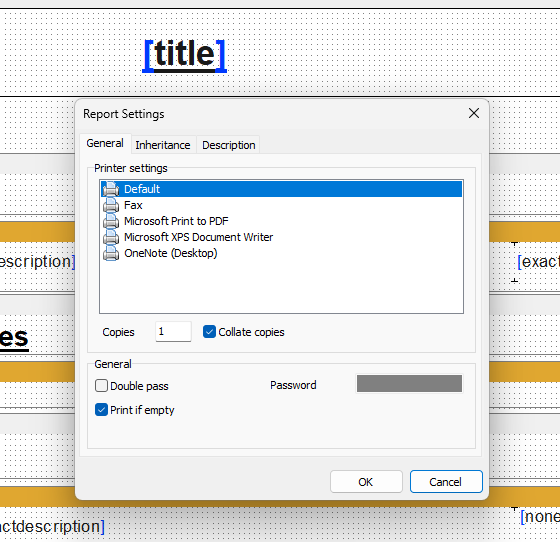
So can see here, password is grayed out. I can't do anything.
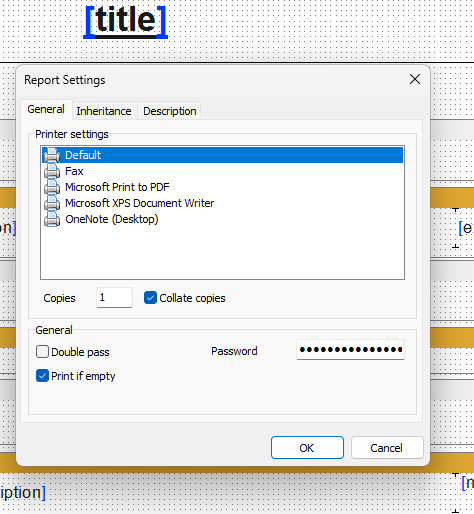
Remove the 1 line of code, and rerun, now i can remove it!
Comments
Hello @ geometry dash 3d, this happens because you set the password in code:
frxReport1.ReportOptions.HiddenPassword := 'bleh';When HiddenPassword is not empty, FastReport assumes the password is controlled by the application, so the designer disables (grays out) the password field. Therefore it cannot be removed in the designer.
I think you should clear it before opening the designer.
frxReport1.ReportOptions.HiddenPassword := '';frxReport1.DesignReport;After editing, you can set it again when loading or running the report.